Short-form editor
A quick product reveal needs one crisp click without a long cinematic boom.
Ask for a dry, close sound, then align its attack with the reveal frame.
ai sound effect generator from textVideo sound
A silent transition, an empty room tone, or a missing impact can make an otherwise finished edit feel incomplete. Describe the sound the scene needs, generate a candidate, then audition it against the picture before committing it to your timeline.
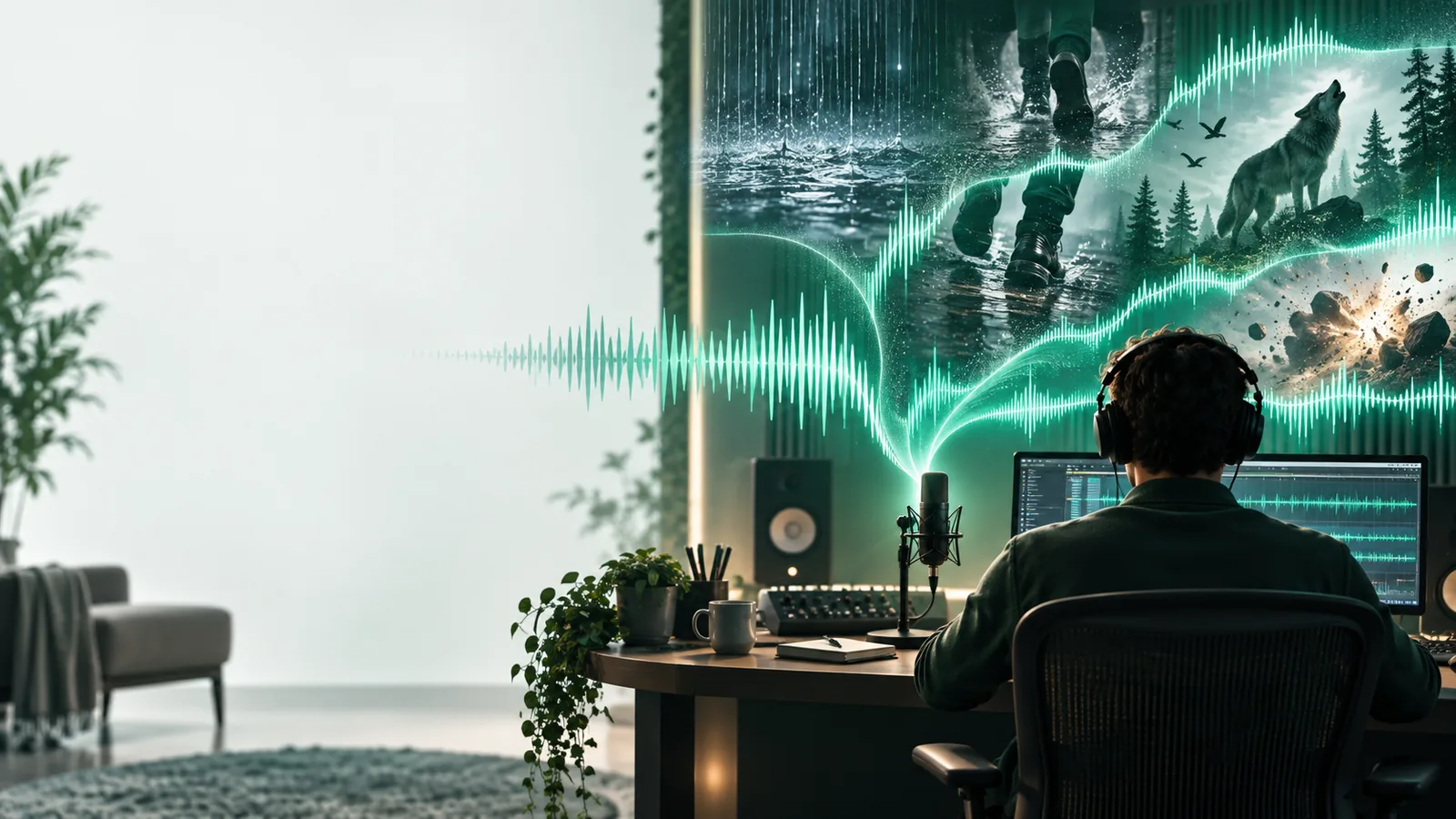
Stock effects rarely match a shot's surface, distance, and pace at once. A useful prompt describes those details before you start searching or generating.
An ai sound generator can supply candidates, but it cannot judge every frame, guarantee a clean take, or clear your project's rights for you.
A text prompt alone does not know where a hand touches a handle or which frame a foot lands.
WorkaroundMark the action in your timeline and trim or reposition the effect by ear.
A candidate may include an unwanted tail, background texture, or an extra impact.
WorkaroundGenerate alternatives and listen to each one alone and under the scene.
Free access to a tool does not, by itself, establish permission for every kind of publication.
WorkaroundRead the current usage terms for the service you use and retain your project notes.
Start with the action on screen, then describe the space around it. These workflows keep a free sound-generation session focused on what the cut actually needs.
For a door slam, name the door material, room size, impact weight, and desired decay. Place the strongest transient on the closing frame, then lower or shorten the tail if it masks dialogue.
For an establishing shot, request a steady background such as distant traffic through a closed window. Favor a texture without prominent events so edits and dialogue can sit over it.
For a cut from a quiet interior to a busy street, describe a brief swell that begins before the picture changes. Test the overlap with headphones and speakers rather than judging the file alone.
The same ai sound generator prompt will not serve every scene. Specify whether you need a single event, a continuous bed, or a sound that leads into the next shot.
A quick product reveal needs one crisp click without a long cinematic boom.
Ask for a dry, close sound, then align its attack with the reveal frame.
ai sound effect generator from textA street montage needs atmosphere that does not overpower an interview.
Request an even background texture and check it beneath the spoken track.
ai sound effect generator from videoA silent walking shot needs footsteps that follow the visible pace.
Generate a suitable surface sound, then separate and position steps in the edit.
ai sound generator tutorial freeFor a door-closing shot, “door noise” leaves too much undecided. “Heavy wooden door closes in a tiled hallway; hollow thud, short latch, no voices” gives you a clearer candidate to audition.
These images illustrate the workflow, not a verified before-and-after audio result. Listen for the latch at the right moment, a believable room tail, and no competing voice or music.
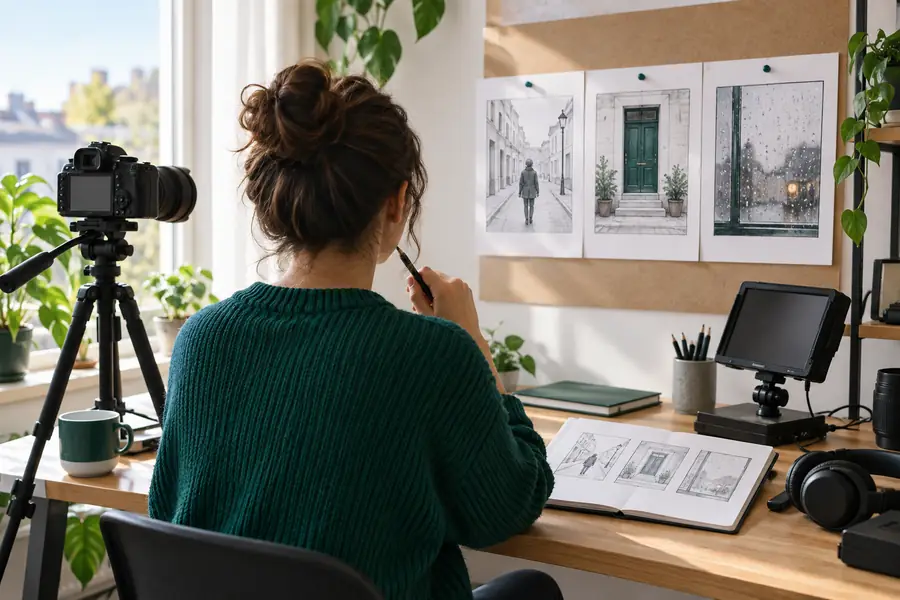
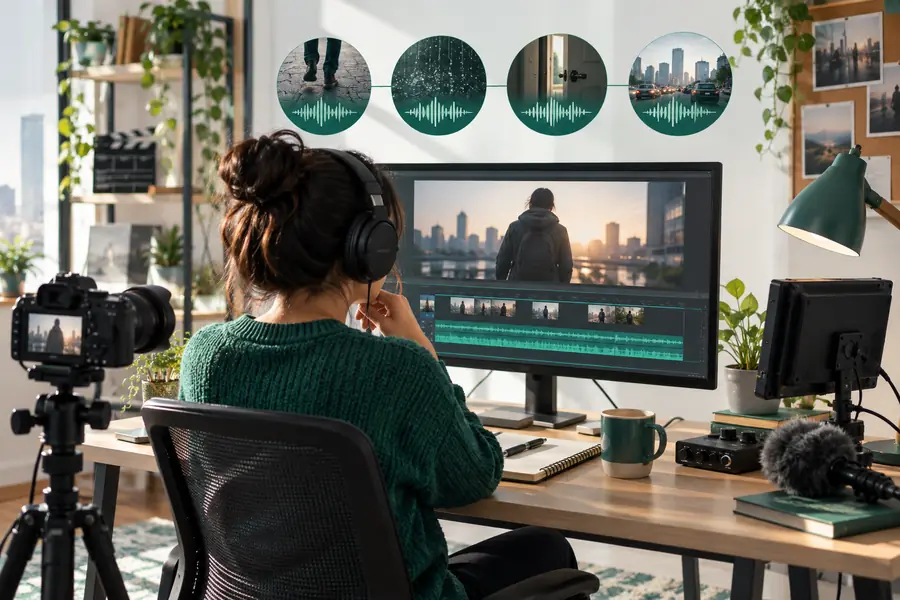
Compare a generated effect with a recording you already have. Neither source is automatically ready for publication simply because it sounds right in the preview.
Generated effect
Recorded effect
Generated effect
Describe the event, material, distance, and space.
Recorded effect
Capture an event with a microphone in a real space.
Generated effect
Trim and align the candidate to the visible action.
Recorded effect
Trim and align the take to the visible action.
Generated effect
Listen for unexpected layers or artifacts.
Recorded effect
Listen for handling noise, traffic, and background voices.
Generated effect
Check whether the effect matches surrounding room tone.
Recorded effect
Check whether the recording's room matches the scene.
Generated effect
Check the generating service's current terms for your use.
Recorded effect
Check recording permissions and any third-party audio present.
Generated effect
Keep the prompt, selected file, and relevant terms.
Recorded effect
Keep the source file and permission notes.
Use the ai sound generator for video free workflow as a starting point: describe one audible event, audition the result in context, and confirm the applicable usage terms before publishing. A free starting point is most useful when the prompt is specific and the final editorial choice stays with you.
Generate scene audioYou can use one to create candidate effects for a video edit. Before publishing, check the service's current terms for your intended use; free access alone does not establish publication rights.
Describe the visible action, material, distance, and surrounding space in the prompt. In your editor, line up the effect's main attack with the action and adjust its length and level while watching the clip.
A prompt can ask for a continuous atmosphere rather than an isolated event. Request a steady texture with few distinct sounds, then check whether it loops or transitions cleanly under the full scene.
The sound may suggest a different surface, room size, or camera distance than the picture shows. Revise those details in the prompt, try another candidate, and listen with the video's dialogue and existing ambience.
Usually, you should at least check timing, level, unwanted sounds, and how the effect ends. Also verify the applicable usage terms; an audio file that works in the timeline is not automatically cleared for every project.