Sound creation
Try an ai sound generator free with your own idea
Describe a sound in ordinary words, then listen for how closely the result matches. Start with a short, specific effect rather than an entire scene; you can add detail after the first attempt.
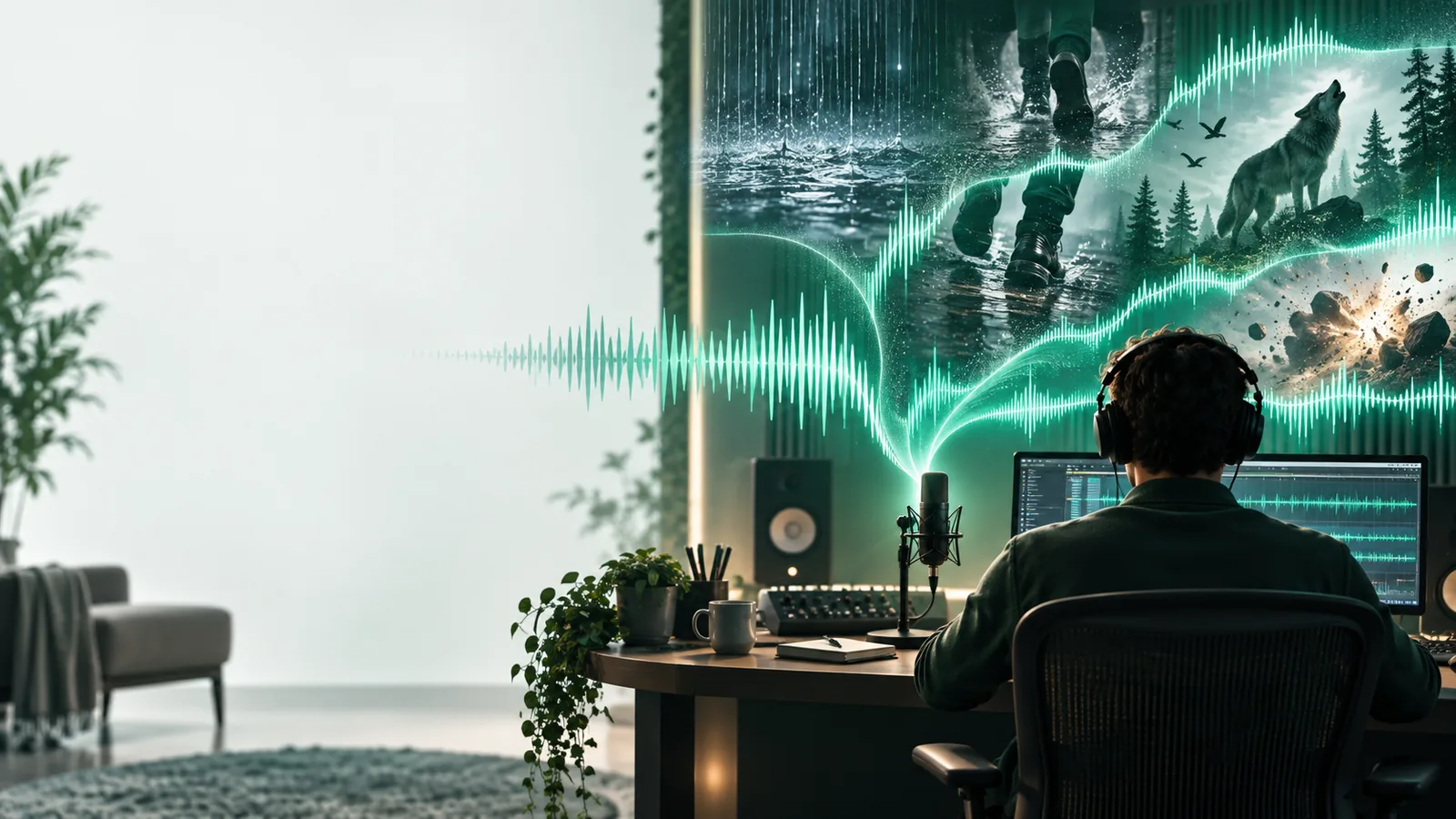
A sound idea is enough to begin
You do not need to record a door, find a microphone, or assemble a sound library just to test an idea. An ai sound generator turns a description into audio you can evaluate by ear.
Three parts of a useful sound prompt
The ai sound generator has more to work with when you describe the source, the action, and the setting. Use those details in this order, then revise only what the first result gets wrong.
-
1
Name the source
Identify what makes the noise: a metal gate, a distant train, rain on a window, or footsteps on gravel. A concrete source gives the generated sound a clearer direction than a mood word alone.
-
2
Describe the action
Say what happens and how it changes: a gate rattles twice and slams, or footsteps approach and stop. Include a short sequence when order matters, but avoid packing several unrelated events into one request.
-
3
Set the listening perspective
Add details such as close-up, distant, indoors, or outdoors. If the result is too busy, remove an adjective or ask for one isolated effect before adding background ambience.
Where the result may fall short
A free starting point is useful for exploration, not a promise that every output will be ready for publication. Listen critically before placing generated audio in a finished piece.
-
Exact timing is not guaranteed
A text description may suggest a sequence without placing each event on the precise frame you need.
WorkaroundGenerate a short isolated effect, then position and trim it in your editor.
-
Specific real-world sounds can be inaccurate
An ai sound generator may produce a plausible impression rather than the precise sound of a particular machine, animal, or location.
WorkaroundUse a verified recording when factual authenticity matters, and treat generated audio as a creative alternative.
-
A crowded prompt can blur the result
Several sources, actions, and environments in one request may compete for attention in the output.
WorkaroundMake separate sounds for separate events and combine them afterward.
-
Usage terms need a separate check
Starting an experiment does not, by itself, establish permission for every commercial or public use.
WorkaroundReview the terms shown by the generation service before publishing or distributing an output.
Choose generation or a field recording
Neither method is the right answer for every scene. This comparison helps you decide whether to prompt an ai sound generator or capture the event yourself.
Generated sound
Field recording
Starting material
Generated sound
A written description
Field recording
A real sound source and recording device
Source availability
Generated sound
Can suggest a sound without physical access to its source
Field recording
Requires access to an event or a suitable substitute
Authenticity
Generated sound
An interpretation that needs listening checks
Field recording
A capture of the event that occurred
Revision
Generated sound
Change the prompt and generate another candidate
Field recording
Record another take or edit the captured audio
Precise event timing
Generated sound
Usually adjusted after generation in an editor
Field recording
Can be performed or edited to a timing cue
Background noise
Generated sound
Depends on the generated result and prompt
Field recording
Depends on the recording environment
Best starting point
Generated sound
Testing an imagined effect or exploring variations
Field recording
Documenting an identifiable real-world sound
Turn a description into a sound candidate
Give your sound idea a first listen
Use an ai sound generator free to explore an effect, then judge the output against your scene rather than accepting the first result automatically. If it misses the mark, change one part of the description and try again. Check the service’s displayed options and usage terms before relying on an output.
Try a sound prompt- Describe one sound event at a time
- Listen for source, action, and setting
- Edit timing separately when needed
Questions about starting free
Yes. Start with a written description of the sound you want rather than a microphone recording. A specific source and action will usually make the result easier to assess.
Name the source, describe what it does, and add the setting or listening distance if it matters. For example, ask for a nearby metal gate rattling twice, rather than simply asking for a dramatic noise.
Do not assume it will land on an exact frame or follow every visual cue. Generate a short effect, listen to it, and use a video editor to trim and place it against the action.
That depends on the terms presented by the service that produces the audio. Check those terms before publishing, and listen for unwanted content or inaccuracies in the particular result you plan to use.
A prompt may contain competing instructions, or the model may interpret a source differently than you intended. Remove extra events, describe the most important action more concretely, and compare the next result with the first.