Hands-on guide

Follow an ai sound generator tutorial free of guesswork

This ai sound generator tutorial free starts with a specific scene rather than a vague request. Write what should happen, listen for what is missing, then change one part of the prompt before generating again. You can practice with the example below or replace it with a sound your project needs.

Start with a written description
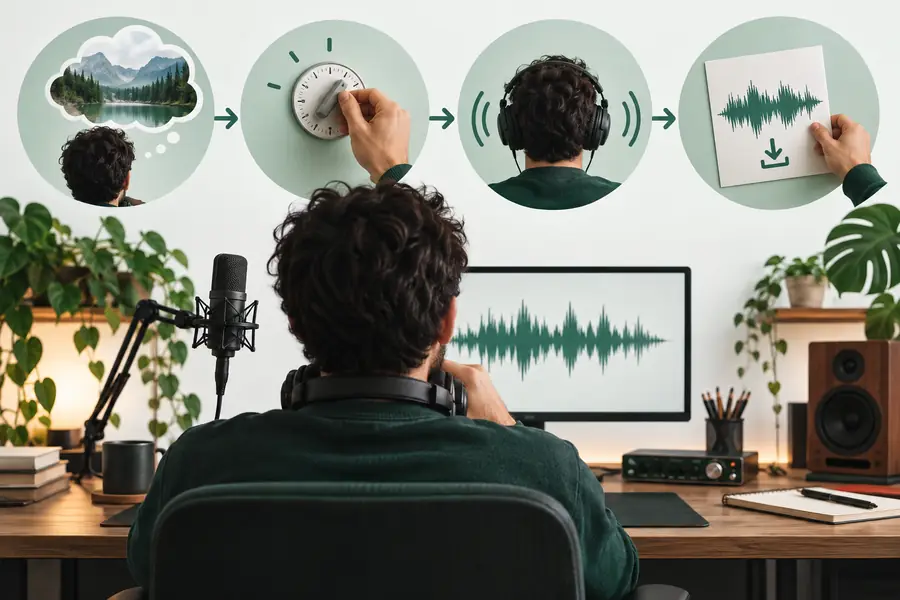
Visual introduction to creating a sound from a written description

You need a short sound idea and a way to listen to the result. A scene, action, and stopping point are enough for your first prompt.

Know the limits before you begin

A generated clip is a draft to inspect, not a guaranteed match for the scene in your head. Keep the first attempt short and judge it by listening.

  • Exact timing is not guaranteed

    A prompt can describe a creak followed by a click, but the result may leave too little space between them or place the click early. Written directions do not provide frame-accurate control.

    WorkaroundGenerate the actions separately if their timing matters, then arrange them in your editor.

  • A prompt cannot verify a clip for you

    A description may request no speech or music, yet the output still needs a careful listen. Check both the main event and the quieter background before using it.

    WorkaroundReplay the beginning and end with headphones, and revise any unwanted elements explicitly.

  • The result may sound different across attempts

    Repeating the same text is not a reliable way to obtain an identical performance. Small differences in rhythm, texture, or background can change whether a clip fits.

    WorkaroundKeep a copy of a usable result and its prompt before experimenting with alternatives.

numbered steps

Use one short prompt, evaluate the audio, and make a deliberate revision. The goal is a usable sound, not a perfect first attempt.

  1. 1

    Describe one audible event

    Start with a noun and action: a wooden door creaks open. Add only the details a listener could hear, such as a quiet room, slow movement, and a latch click at the end. Say whether voices or music belong in the clip. Avoid camera directions and abstract mood words unless you translate them into audible qualities.

  2. 2

    Generate and listen all the way through

    Submit the description and play the entire result, including its first and last moments. Ask whether the main event is recognizable, whether the background suits the scene, and whether an unwanted sound distracts from it. If the clip is for an edit, play it against the scene rather than judging it in isolation.

  3. 3

    Change one instruction and try again

    If the latch is missing, ask for a distinct latch click after the creak. If the sound is too busy, request a quieter background instead of rewriting everything. Save the version that works before making another attempt. Changing one instruction at a time makes it easier to tell which wording improved the result.

common errors and fixes

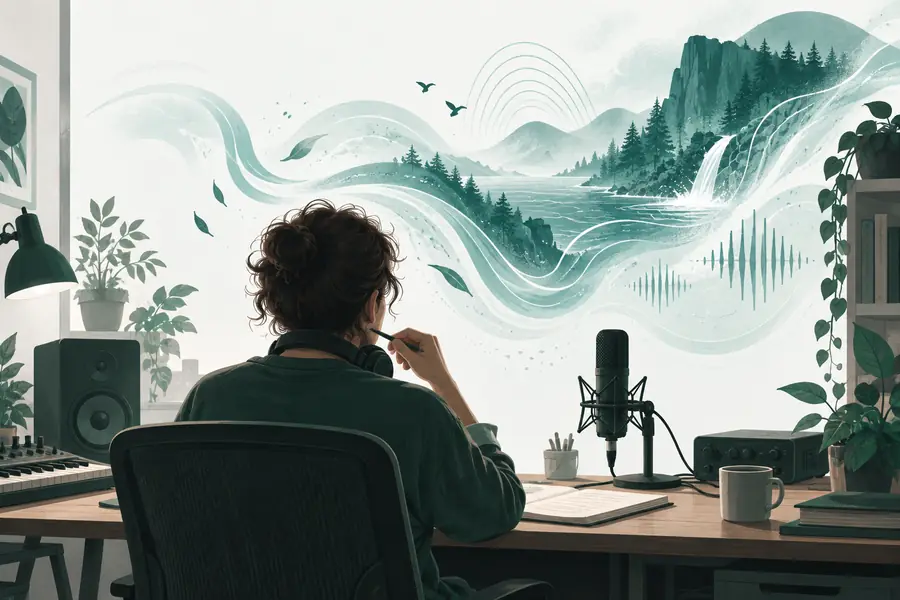
The most useful comparison is between a broad request and a prompt that names audible details. The images illustrate the revision process; they are not audio previews.

  • Broad: a spooky door sound
  • Specific: a slow creak, then a latch click

If a result feels generic, name the material and action. If it includes distractions, state what should be absent. If two events blur together, request a clear sequence or generate them separately. Listen to the new clip before deciding that the revised wording worked.

Illustration accompanying an initial sound idea
Illustration accompanying a more specific sound-generation prompt

advanced tips

Once a basic prompt works, adapt your listening check to where the sound will be used. These three workflows give each revision a clear purpose.

Video editor

You need a door sound to land on a visible movement, but the generated creak and click overlap.

Make the creak and click as separate assets, then position each against the picture. For scene-specific guidance, see the linked video workflow.

ai sound generator for video free

Game creator

You need several variations of a small interaction so repeated playback feels less mechanical.

Keep the object and action consistent while varying one audible quality, such as force or surface texture. The linked effect guide helps narrow the sound you are describing.

ai sound effect generator

Short-form storyteller

You want ambience behind narration without a competing melody or an unexpected voice.

Describe a steady background layer and explicitly exclude speech and music. Use the linked access guide to plan a first attempt without an account.

ai sound effect generator no sign up

Put the method to work

Start with one sound you can describe

Choose a single event from your scene and write down its action, material, surroundings, and ending. Generate a draft, listen closely, and revise the least convincing detail. If the output will sit under dialogue or match a cut, test it in context before treating it as finished.

Generate a sound
  • Begin with one recognizable event
  • Listen for unwanted background audio
  • Keep a usable version before revising

tutorial FAQ

Pick one audible event, such as a door opening or rain striking a window. Describe the action, the surrounding space, and any sounds that should be excluded, then generate a draft and listen to the whole clip.

Use concrete words a listener could recognize: object, action, surface, pace, and background. For example, ask for slow footsteps on gravel in a quiet outdoor space rather than simply requesting a tense sound.

Identify the largest mismatch before rewriting: the wrong main event, unwanted background, or unclear order of actions. Change one instruction that addresses it and compare the next result with the earlier clip.

Yes, but a written prompt alone cannot guarantee that an event will land on a particular frame. Generate the sound, place it against the picture, and trim or arrange separate elements in your editor when precise timing matters.

No editing experience is needed to write a prompt and evaluate a first result. Basic editing becomes useful when you need exact timing, a seamless loop, or separate control over foreground and background sounds.

Create sound
Create sound