
Video sound workflow

How to use an ai sound effect generator from video clips

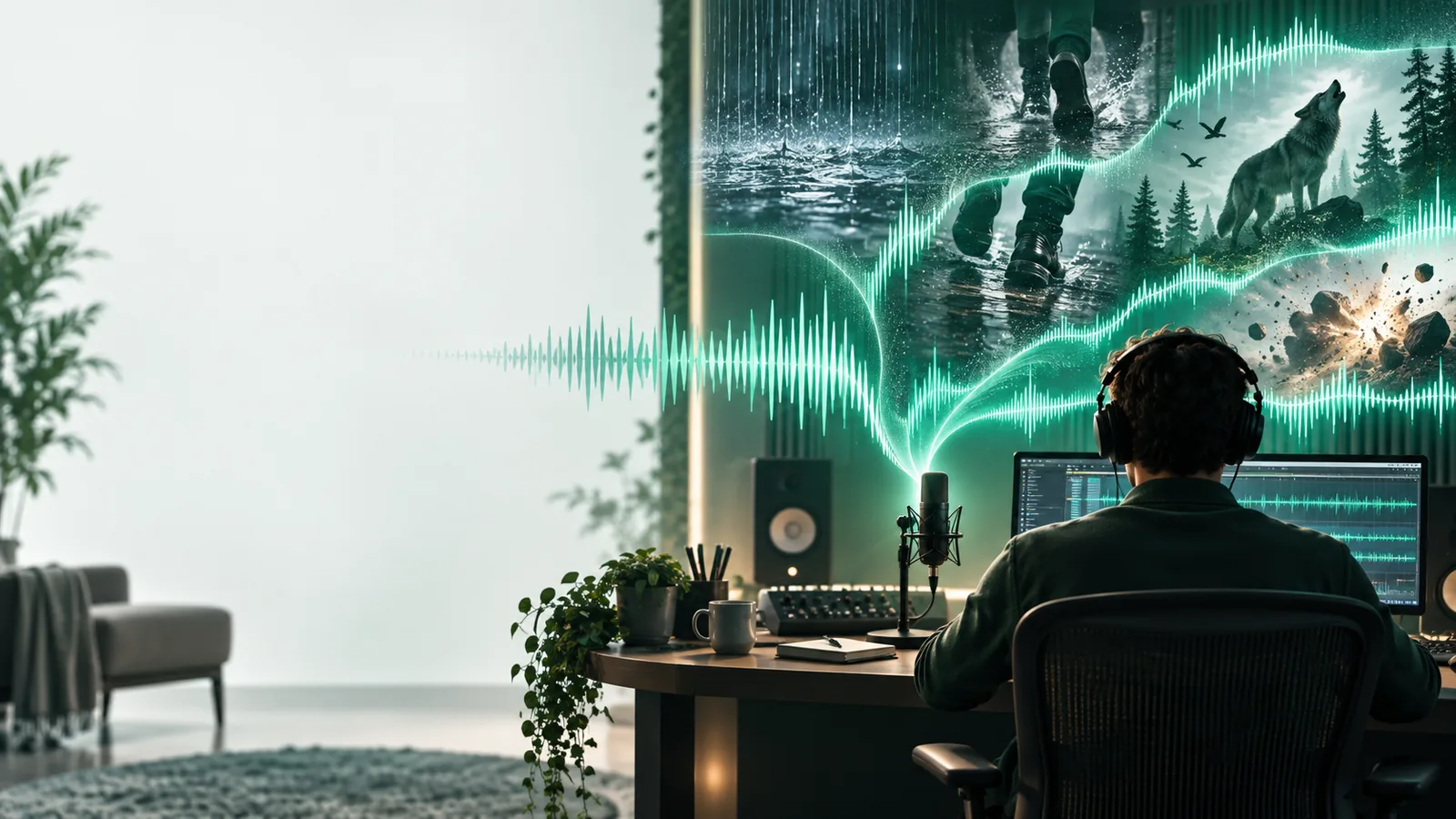
An ai sound effect generator from video can help you plan sounds around visible actions. First, note what happens and when; then describe the sound you need. Check the resulting audio against the footage rather than assuming it will sync automatically.

Describe the scene to begin
Illustration accompanying a sound-generation prompt

A/B structural difference table

Video-guided generation and a written scene description begin with different information. This comparison helps you choose a workflow without assuming that every tool accepts video files.

1

Starting material

Direct video input

Footage supplied to a tool that supports video input

Written scene prompt

Your description of the visible action

2

Action identification

Direct video input

Depends on what the tool detects in the frames

Written scene prompt

You name the action and relevant objects

3

Timing

Direct video input

May use the footage as a timing reference; verify the result

Written scene prompt

You provide a cue point and align the audio in your editor

4

Sound character

Direct video input

May need extra direction about distance, surface, and intensity

Written scene prompt

Those details can be specified in the prompt

5

Ambiguous scenes

Direct video input

The tool may infer the wrong source of a sound

Written scene prompt

You can state the intended sound source explicitly

6

Revision

Direct video input

Change the video selection or add instructions

Written scene prompt

Edit the wording and regenerate a candidate

What conversion loses

A clip shows motion, but it may not reveal a material, an off-screen source, or how loud a sound should feel. These illustrative cue briefs show what to write down before generating audio.

scroll
  1. Illustrative thumbnail for a close-up action cue 1 Action cue
    Input brief: A hand closes a wooden door at 00:04. Ask for one solid latch click and a short room tail; the picture alone cannot establish the latch's exact sound.
  2. Illustrative thumbnail for a movement cue 2 Footsteps
    Input brief: Shoes cross a wet pavement shot. Specify brisk rubber footsteps and light splashes; a silent image does not tell you the shoe material.
  3. Illustrative thumbnail for an ambience cue 3 Ambience
    Input brief: A wide evening street view needs distant traffic and a gentle wind bed. Set the perspective explicitly instead of treating every visible car as foreground audio.

The tool block

Choose a short shot, identify its main audible event, and write one cue per prompt. A generated effect is a candidate asset, not a finished sound mix.

Short-form editor

A quick cut shows a cup landing on a table. Describe the surface, impact, and whether the sound should end sharply.

For a workflow starting with a written cue rather than footage, ai sound effect generator from text explains how to turn those details into a focused prompt.

ai sound effect generator from text

Game trailer creator

A character passes through several environments. Separate footsteps, door movement, and ambience into distinct requests.

The ai sound effect generator from text guide shows how to describe each event independently so revisions do not affect unrelated cues.

ai sound effect generator from text

Documentary maker

Archive footage has no usable location sound. Note what is visible and avoid inventing a precise source where the scene cannot establish one.

Use ai sound effect generator from text for guidance on expressing a restrained ambience brief without implying that it is original recorded audio.

ai sound effect generator from text

How to verify after

Check the cue against the picture

Play each candidate with the clip, not in isolation. Confirm that the attack lands on the action, the sound source fits what viewers see, and the tail does not spill across an unwanted cut. Compare at the level of the surrounding audio; if the effect feels too close, too bright, or too busy, revise the prompt or adjust it in your editor. Keep the original video audio available for comparison before you export.

Generate sound effect
  • Check onset against the visible action
  • Listen for material and distance mismatches
  • Trim or fade the tail at the edit

Variant FAQ

That depends on the tool: some accept footage, while others accept only a written prompt. If video upload is not available, watch the clip and describe its action, setting, and intended sound before generating.

Do not assume frame-accurate sync. Place the sound in your editor, align its first audible moment with the visible event, and replay the cut to check its ending.

Name the audible event, its material or surface if known, its distance from the camera, and the desired intensity. Include a cue point when timing matters, and say what to exclude, such as music or speech.

Yes, but separate prompts usually make the results easier to place and revise. Treat the ambience as a continuous layer and each visible action as an individual cue.

Create sound
Create sound